Product videos from photos: building the brief
Higgsfield explains choosing a UGC or Motion template, adding product references and reviewing the output, including packaging, labels and colors.
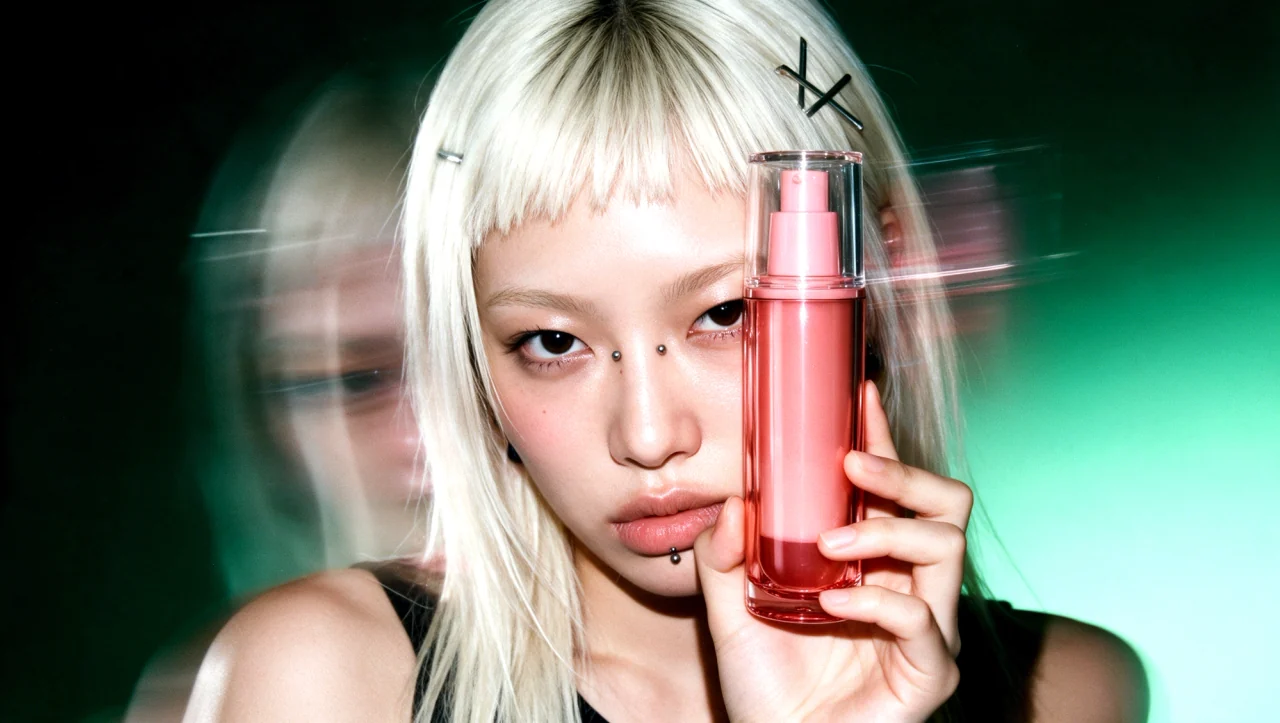
A product video must preserve the actual item, not merely produce an attractive scene. Higgsfield’s October 30 guide describes Marketing Studio template selection, product upload, briefing and output review. Here is the workflow in practical production terms.
Define the message and prepare references
Decide whether the clip needs a presenter, a product reveal, an unboxing or a single demonstration. UGC formats center on a character; Motion formats emphasize the product and movement. Judge the template’s pacing and composition against the message, rather than choosing only an impressive preview.
Prepare clear photographs showing shape, labels and color. The guide also describes product-page links, written briefs and permitted reference ads. Available inputs depend on the selected tool. A store link does not remove the need to check the information extracted from that page.
An editorial example is a cosmetics bottle: the first version might establish its packaging and demonstrate one use. Showing every feature at once is less useful than keeping the bottle recognizable. This is a briefing example, not a campaign we have tested.
The Marketing Studio workflow
Step 1. Select a video template
Filter the catalog for videos. Consider UGC for presenter-led explanation and Motion for a product-focused sequence. Watch the example through, checking where the product appears and whether its main action has enough screen time.
Step 2. Upload the product
Use Replace product → Upload product. Supply references of the intended item. Our recommendation is to exclude photographs of similar but different packaging, which can introduce contradictory visual information.
Step 3. Set the presenter and brief
Where supported, UGC uses Replace avatar → Choose avatar. Describe the message and action in Describe your edit. For example, show the bottle clearly and demonstrate its use. Do not introduce unverified product claims: generation does not validate advertising statements for you.
Step 4. Understand the format controls
The guide makes an important distinction: Recreate Template inherits its template’s format and does not provide separate duration, resolution or aspect-ratio controls. For independent choices, use the upper Video prompt bar and an appropriate UGC, Motion or TikTok style. Controls vary by style.
Step 5. Check cost before submission
Recreate or Generate displays the price of the selected job. Include output count and additional attempts in the budget. The source’s example prices refer to particular settings and a recorded check date; they are not universal prices for every clip or subscription. Use the actual displayed price before generation.
Step 6. Generate, compare and revise
Compare the result with the reference photographs throughout the clip, not only at its first frame. Labels, shape and logos can change during movement. Revise one variable at a time, such as framing, the opening or the presenter, so you can identify what improved the result.
Review before release
- Packaging shape and color remain consistent throughout.
- The name and label do not become invented lettering.
- Hands interact plausibly with the item and its size remains stable.
- The product and action stay visible in the delivery format.
- Text and speech contain no unsupported claims, results or discounts.
This is an editorial acceptance checklist, not a quality guarantee. A brief local defect may be editable; a product that changes identity needs a different solution.
Integration limits
The article places the full template catalog on Higgsfield’s website. MCP offers a smaller selection of ready advertising presets and uses credits. The public Marketing Studio API supports images, not this video workflow. Supplier interface availability therefore does not establish an equivalent VIZURAI integration. The original demonstration and source are linked on this page.
Create your own result
Choose an available model and check its price in the studio.
Sources
- How to Make Product Videos with AI in 2026 (Full Guide) Published by the source: